

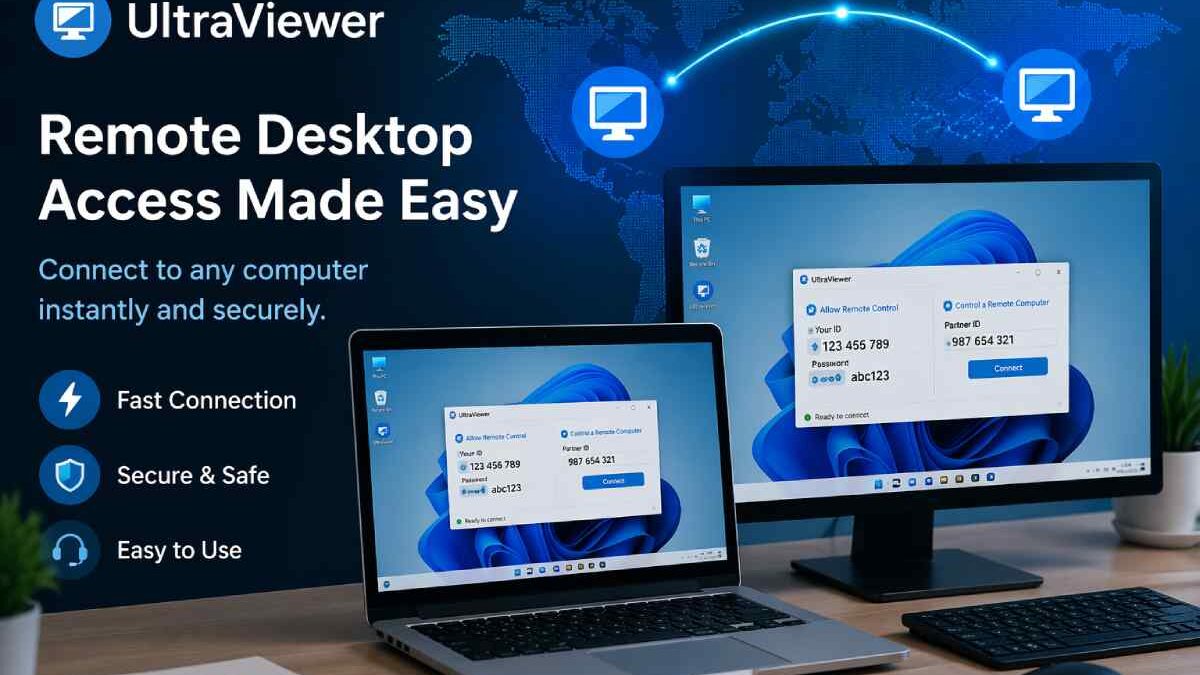

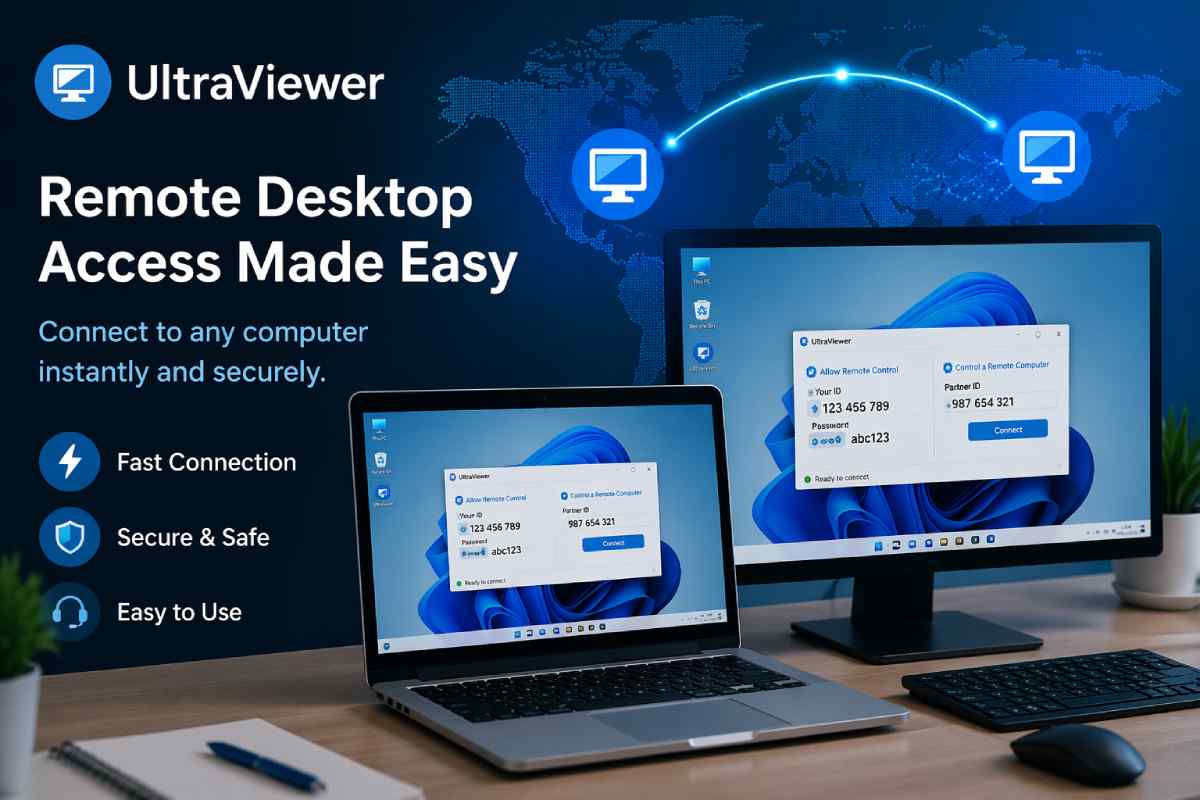
If you’ve been looking for a fast, no-fuss way to remotely access another computer, UltraViewer has almost certainly come up in your search. It’s free, lightweight, and takes under two minutes to set up — which explains why it’s become one of the more popular remote desktop tools among IT technicians and everyday users alike.
But “free and simple” doesn’t mean “right for everyone.” This guide covers exactly what UltraViewer does, what it doesn’t do, how the pricing actually works, and who should — or shouldn’t — rely on it in 2026.
Table of Contents
What Is UltraViewer?
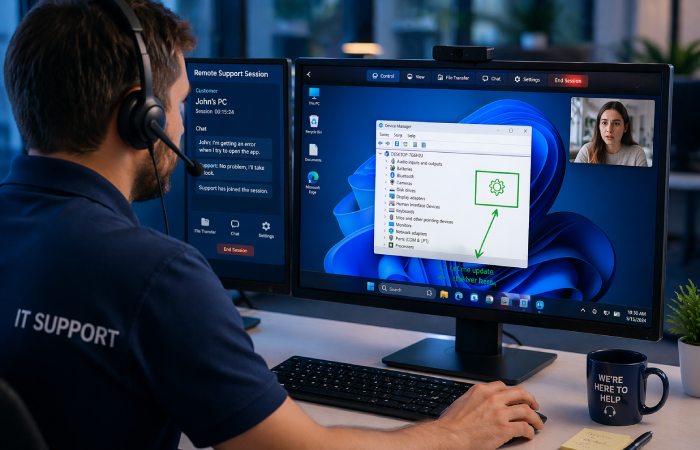
UltraViewer is a powerful remote desktop software that lets users access and control another computer from any location. This business software and collaboration software is widely used for remote technical support, allowing IT teams, service providers, and individuals to solve issues, provide guidance, and conduct virtual sessions without being physically present.
UltraViewer simplifies remote operations, whether it’s helping a client with a technical problem, sharing files, or offering training sessions. Compatible with Windows, UltraViewer focuses on ease of use, making it an accessible remote desktop software choice for both beginners and professionals. Remote desktop tools like UltraViewer fall under the broader category of remote access software, which is explained in detail in this remote desktop software overview on Wikipedia
Why Choose UltraViewer?
- Easy-to-Use Interface:UltraViewer’s simple interface makes it easy for anyone to initiate and manage remote sessions, even with little technical knowledge.
- Real-Time Communication:Built-in chat and communication tools enable instant messaging between users, improving the support experience.
- Flexible Remote Control:It supports remote file transfers, screen sharing, and session management, catering to diverse remote support needs.
- Secure Remote Access:It prioritizes security with encrypted connections, ensuring data and sessions are protected.
- Cost-Effective Solution:UltraViewer offers a reliable remote access tool at competitive pricing, making it a budget-friendly choice for businesses and individuals.
How UltraViewer Works: Step by Step
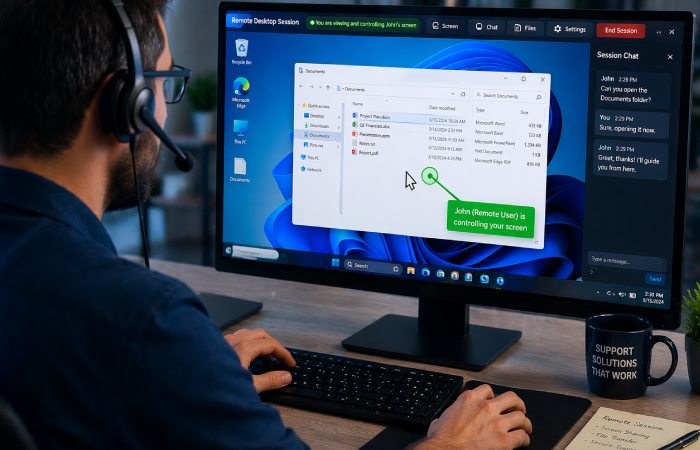
The connection process is deliberately simple:
To control someone else’s computer:
- Both parties download and open UltraViewer (no account needed).
- The person needing help shares their displayed ID and password.
- You enter that ID and password into your UltraViewer and click Connect.
- You now have full view and control of their screen.
To let someone else control your computer:
- Open UltraViewer.
- Share the ID and password shown on your screen.
- The supporter connects — you can watch everything they do in real time.
- You can take back control or disconnect at any moment.
Clients can observe all actions taken on their screen and can take control whenever necessary, and users can chat with their partners while controlling their machines, with the option to toggle chat on or off.
Key Features of UltraViewer
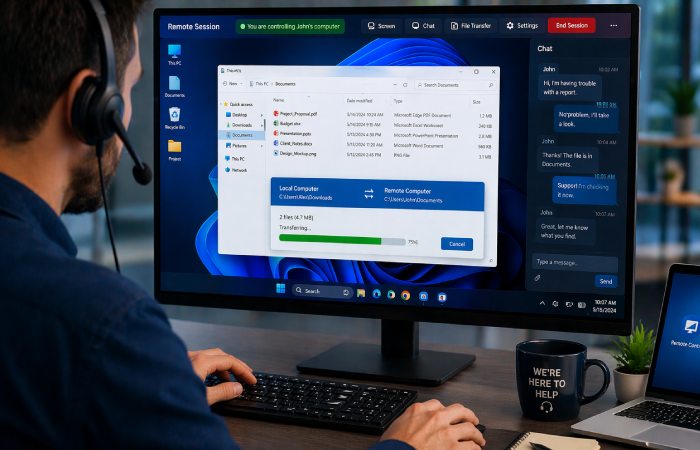
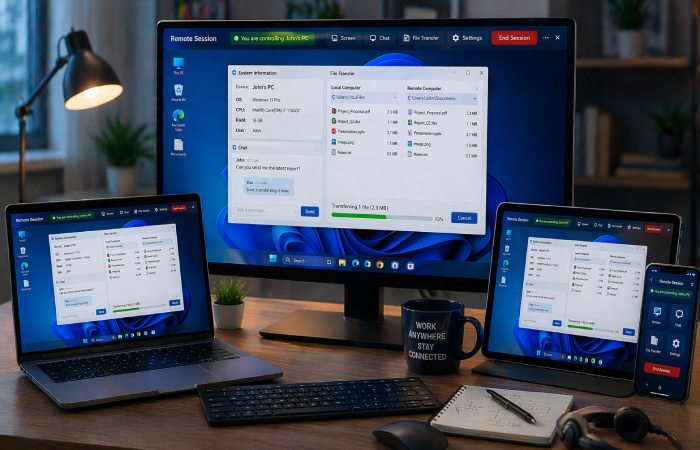
UltraViewer allows screen sharing, file transfer, and chat functionalities, facilitating efficient and secure remote assistance from anywhere, and supports controlling multiple computers simultaneously or sharing your screen with multiple computers.
Here’s what you get across all versions:
| Feature | Available |
| Remote screen control | Yes |
| Real-time chat window | Yes |
| File transfer (send & receive) | Yes |
| Multi-computer control | Yes (paid) |
| Session recording | Yes |
| Screen quality adjustment | Yes |
| No registration to start | Yes |
| Works through firewalls/routers | Yes |
| macOS / Linux support | No |
| Mobile remote control | No |
One genuinely useful feature is the in-session chat window. You can toggle chat on and off while controlling by pressing the default hotkey F1 or any hotkey you set, and send and receive files directly from the chat window.
What are the Benefits of UltraViewer Remote Desktop Software?
- Instant Access:Quickly connect and control remote computers to provide support or share information instantly.
- Efficient File Transfers:Easily transfer files during remote sessions, enhancing productivity and collaboration.
- High-Quality Video:Adjust screen quality based on the network, ensuring uninterrupted and clear visuals even with limited bandwidth.
- Improved Collaboration:Real-time communication allows for immediate responses and interactive support, ideal for technical assistance.
- Session Control:Easily manage and record sessions for future reference, training, or audit purposes.
- Low System Requirements:UltraViewer operates smoothly on most systems, ensuring compatibility without needing high-end hardware.
- Quick Media Sharing:Share images, videos, and other media files instantly during a session, adding flexibility to interactions.
- Remote Wake-Up:Wake up remote devices to initiate support or control sessions without requiring physical access.
- Seamless Video Recording:Capture sessions with video recording for training, reference, or review, adding value to every remote session.
UltraViewer Pricing
UltraViewer price starts at $ 4 at techjockey.com. The pricing model is based on different parameters, including extra features, deployment type, and the total number of users. For further queries related to the product, you can contact our product team and learn more about the pricing and offers.
UltraViewer Pricing: Free vs Paid Plans
UltraViewer is completely free for both business and personal use in its base version — you can use it without paying any fee.
That said, the free version has real limitations for commercial or high-volume use. Here’s how the plans break down:
| Plan | Price | Devices | Concurrent Sessions | File Size Limit | Ads |
| Free | $0 | 1 | 1 | 2GB | Yes |
| Lite | ~$4/month | Up to 6 | 1 | 2GB | No |
| Pro | ~$6/month | Up to 6 | Unlimited | 4GB | No |
| Premium | ~$8/month | Up to 12 | Unlimited | 8GB | No |
The Lite version supports one user and one device, allows for one concurrent remote session, and can connect to up to three remote endpoints per month. The Pro license can be installed on up to six computers, with unlimited remote endpoints and a 4GB file limit. The Premium license can be installed on up to 12 computers and provides unlimited concurrent remote sessions, unlimited remote endpoints, and an 8GB file limit. All paid versions are ad-free.
One important note on how “new devices” are counted: each computer has its own ID number — when you connect to a new ID that you have not controlled within the past month (approximately 30 days), UltraViewer counts it as a new device.
If you’re a freelancer doing occasional support for a handful of regular clients, the free version will likely cover you. For IT businesses or anyone with multiple concurrent sessions, the Pro or Premium tier is worth considering.
Who UltraViewer Is Best For
UltraViewer fits a specific type of user well. It works cleanly for:
IT support technicians who need to quickly connect to client machines, run diagnostics, install software, or resolve issues without travelling on-site.
Small businesses and freelancers doing occasional remote support where TeamViewer’s pricing feels excessive and the free version’s limitations on competitors are frustrating.
Individuals helping friends or family — if your parent or relative needs PC help, UltraViewer is one of the easiest tools to get them connected without any technical literacy on their end.
Online tutors and trainers who walk students through software or processes in real time and need screen share with control capability.
Who Should Think Twice Before Using UltraViewer
UltraViewer has genuine limitations that matter depending on your use case.
macOS and Linux users: UltraViewer is not available for macOS. If either party is on a Mac, UltraViewer simply won’t work.
Mobile-first workflows: You can’t control a PC from your phone, and you can’t control a phone from your PC — both essential features in today’s mobile-first world.
Enterprise or high-security environments: UltraViewer uses basic encryption suitable for casual support, but it’s not robust enough for sensitive or enterprise environments.
High-performance use cases: It wasn’t built for remote gaming, design work with high-resolution assets, or any workflow that demands low latency and high frame rates.
UltraViewer vs Competitors: Quick Comparison
| Feature | UltraViewer | TeamViewer | AnyDesk |
| Free for personal use | Yes | Yes (limited) | Yes (restricted) |
| Windows support | Yes | Yes | Yes |
| macOS support | No | Yes | Yes |
| Linux support | No | Yes | Yes |
| Mobile control | No | Yes | Yes |
| Encryption | AES-256 | AES-256 | TLS 1.2 |
| Paid plan starts at | ~$4/month | ~$24/month | ~$14/month |
| Ease of setup | Very easy | Moderate | Easy |
Both TeamViewer and UltraViewer provide encryption based on RSA private/public key exchange and AES 256-bit session encryption. TeamViewer Premium charges $112.90 per month offering 15 licensed users and 10 concurrent remote sessions, while UltraViewer Premium charges $7.99 per month for up to 5 licensed users and 5 concurrent remote sessions.
For pure cost-per-feature on Windows, UltraViewer is hard to beat. For cross-platform flexibility, TeamViewer and AnyDesk pull ahead significantly.
To compare how different remote desktop tools perform across platforms and use cases, see this comprehensive remote desktop comparison guide on PCMag
Common Mistakes to Avoid with UltraViewer
Sharing your ID and password publicly. The ID is semi-permanent but the password resets each session. Never share either in a public forum or unsolicited message.
Assuming it’s truly platform-agnostic. Many users discover only after downloading that the person they’re trying to help is on a Mac.
Relying on the free version for commercial work. UltraViewer’s terms allow free commercial use at the base level, but the 3 remote endpoints per month cap on the free tier becomes a hard constraint quickly for active IT work.
Not reapplying for the free tier endpoint reset. New endpoints are counted on a rolling 30-day window — keep that in mind when calculating how many clients you’re supporting.
FAQs
Q: Is UltraViewer free? Yes. UltraViewer is free for both personal and commercial use in its base version, with no time limits on sessions. Paid plans add features like more concurrent sessions, larger file transfers, and ad-free use.
Q: Is UltraViewer safe to use? UltraViewer is safe — all sessions are encrypted and require explicit permission from the controlled side. No connection can be established without the other party actively sharing their ID and password.
Q: Does UltraViewer work on Mac? No. UltraViewer is not available for macOS. It is Windows-only. If you need cross-platform remote access, AnyDesk or TeamViewer are the practical alternatives.
Q: How many computers can I control with UltraViewer for free? The free version supports one concurrent remote session and can connect to up to three remote endpoints per month, with a 2GB file transfer limit.
Q: What is the difference between UltraViewer and TeamViewer? UltraViewer is Windows-only and significantly cheaper, starting from free up to around $8/month. TeamViewer supports Windows, macOS, Linux, and mobile platforms but starts at around $24/month for commercial use.
Q: Does UltraViewer require internet? Yes. Both computers need an active internet connection to establish a remote session through UltraViewer’s servers.
Q: Can the person being controlled see what I’m doing? Yes — your clients can observe all you do on their screen and take control whenever they want. Nothing happens invisibly or without their awareness.
Final Conclusion
UltraViewer fills a genuine gap in the remote desktop market: a fast, free, no-registration tool that works reliably for Windows-to-Windows support without the price shock of TeamViewer or the recent restrictions on AnyDesk’s free tier.
For IT technicians, solo freelancers, or anyone regularly helping friends and family with PC issues, it delivers exactly what it promises. The limitations — Windows-only, no mobile control, basic enterprise security — matter only if your use case actually needs those things.
If you’re ready to try it, download UltraViewer directly from ultraviewer.net and test the free version before committing to a paid plan. For more remote work software guides and comparisons, browse our full tech tools section at worldmarketingtips.com.